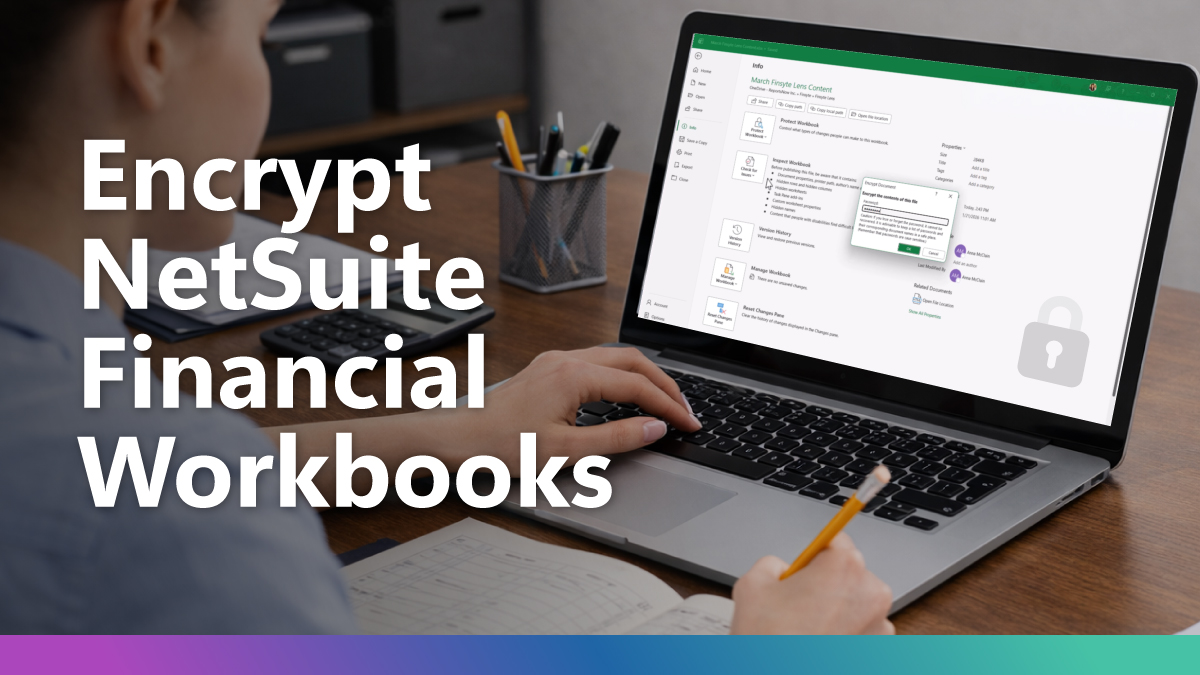
If your team uses Finsyte for reporting on NetSuite financials, your workbooks likely contain highly sensitive accounting data — general ledger detail, trial balances, subsidiary reporting, payroll allocations, revenue schedules, and forecast models.
One simple step can dramatically improve both security and performance…
Encrypting your Excel financial workbooks with password protection.
This is not about hiding a sheet. It’s about protecting NetSuite financial data from unauthorized access, strengthening compliance posture, and reducing unnecessary system scanning overhead that can slow down large Excel files.
For Finance and Accounting teams working in Excel with NetSuite, this should be standard practice.
Why This Matters for NetSuite Financial Reporting in Excel
When refreshing NetSuite Financials in Excel using Finsyte — your workbook may contain:
- Account balances and GL detail
- Subsidiary-level reporting
- Customer and vendor data
- Payroll allocations
- Budget and forecast models
- Month-end close documentation
Without encryption, the file is simply stored data. Anyone with access to the file can open it.
With encryption enabled, the entire workbook is secured using Excel’s built-in AES encryption standard.
1️⃣ Encryption Secures the Entire Workbook (Not Just a Sheet)
Many users confuse Excel’s protection options:
- Protect Sheet → prevents editing cells
- Protect Workbook Structure → prevents adding/removing sheets
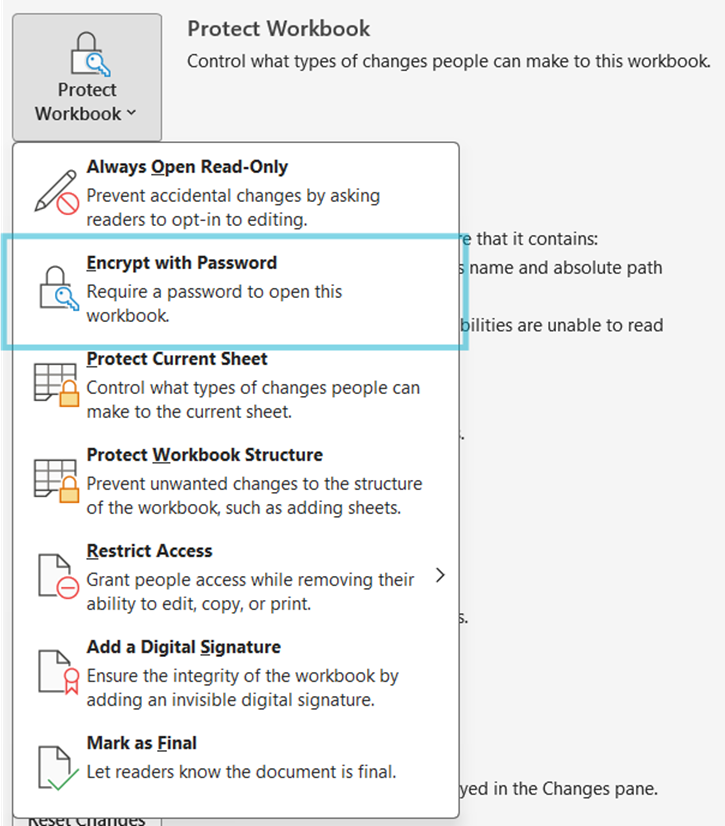
- Encrypt with Password → encrypts the entire file
Only Encrypt with Password secures the actual data.
When you choose this option:
- The file cannot be opened without the password
- Data cannot be read using file inspection tools
- The contents are unreadable without decryption
- Access is prevented even if the file is copied
For Accounting teams working with NetSuite data in Excel, this is a critical control.
2️⃣ Encryption Can Improve Excel Performance
Here’s something many NetSuite and Excel users don’t realize:
Security tools such as Windows Defender and Microsoft Purview scan open documents to detect confidential data patterns. This background scanning consumes CPU and memory — especially in large financial workbooks with thousands of rows.
When a file is encrypted:
- Security tools cannot inspect workbook contents without decryption
- Resource usage is reduced
This can result in:
- Faster file open times
- Less CPU usage
- Smoother performance during large NetSuite refreshes
- Reduced system interference during financial reporting
For heavy Excel users pulling live NetSuite Financials, the performance difference can be noticeable.
3️⃣ How to Encrypt a NetSuite Financial Workbook in Excel
The process takes less than 30 seconds.
- Click File
- Click Info
- Click Protect Workbook
- Select Encrypt with Password
- Enter and confirm your password
- Save the file
Once saved, your entire Excel workbook is encrypted.
4️⃣ When Finance & Accounting Teams Should Encrypt
If you’re using Excel for NetSuite Financial reporting, encryption is especially important when sharing files internally via email, sending workbooks to external auditors, storing reports on shared drives, archiving month-end close documentation, and distributing budget or forecast models.
For Accounting and Finance professionals, this should be policy — not an afterthought.
Finsyte simplifies working with NetSuite Financials in Excel. But, once NetSuite data is inside Excel, security responsibility shifts to the user and organization.
By encrypting your financial workbooks:
- You protect NetSuite Accounting data
- You strengthen Finance compliance controls
- You reduce background system scanning
- You maintain control over distributed reporting files
Security and performance are not competing priorities. With proper encryption, they support each other.
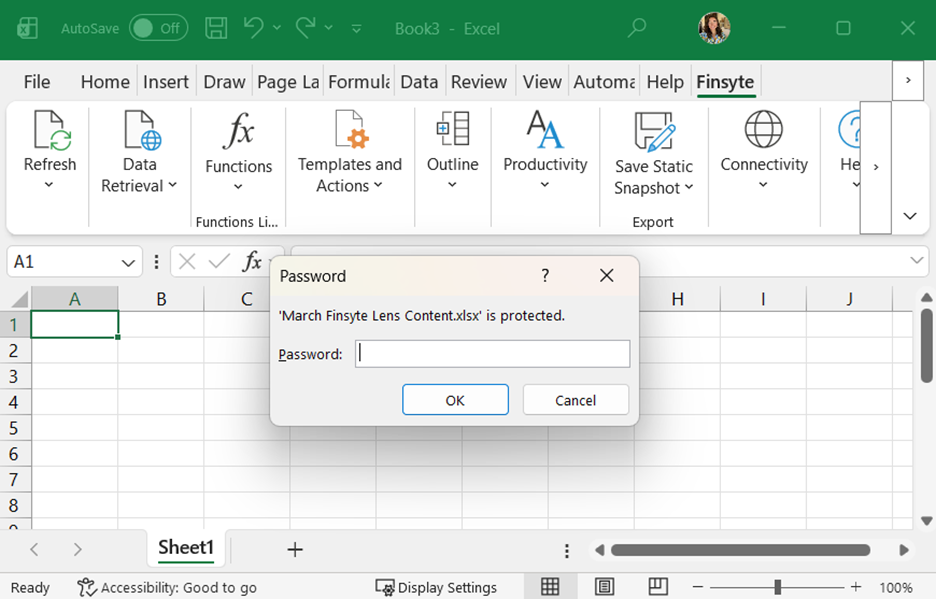
With Finsyte, only unencrypted files can be exported to static snapshots to ensure users aren’t saving unprotected versions of their financials without realizing it.
When selecting an export type from the Finsyte ribbon, the user will be prompted to enter their encryption password before the static snapshot is saved. By default, the generated snapshot will be encrypted already with the same password.
5️⃣ Compliance & Governance Considerations
Password encryption supports stronger data governance and compliance controls.
This is especially needed for organizations subject to:
- SOX
- GDPR
- SOC 2
- PCI-DSS
Encrypted workbooks demonstrate reasonable safeguards around financial data both in transit and at rest.
Important notes:
- Remember Excel passwords cannot be recovered if lost
- Store passwords in a secure password manager
- Use strong passwords (12+ characters, mixed complexity)
- Align encryption practices with IT policy
Encryption is not a complete security strategy — but it is a foundational control.
Final Thought for NetSuite Finance Teams
If your organization relies on Finsyte, password protecting your workbooks is one of the simplest, highest-impact steps you can take.