
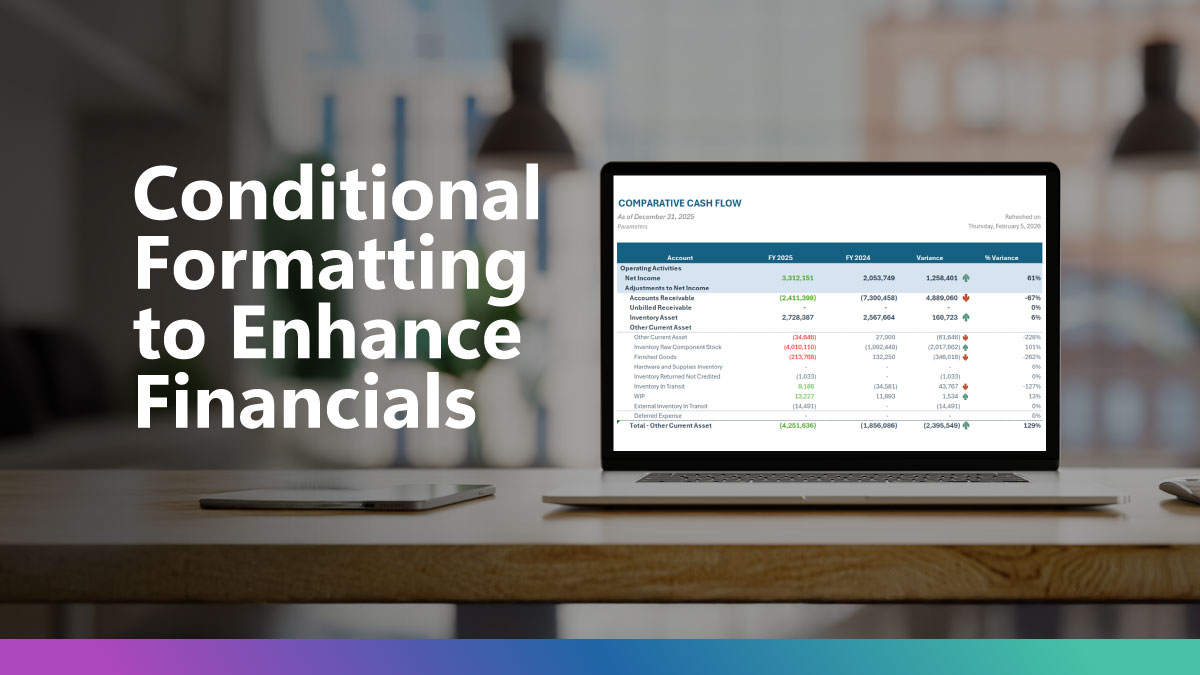
For finance professionals, getting NetSuite Financials into Excel is only the first step. The real value comes when you can interpret and act on that data quickly. Conditional formatting in Excel is one of the most practical ways to visualize financial data. When paired with live NetSuite reporting through Finsyte, it becomes part of a repeatable, reliable reporting workflow.
Why Conditional Formatting Matters
Conditional formatting applies visual rules such as colors, icons, and data bars based on criteria you define. When analyzing financial statements pulled from NetSuite into Excel, these visual cues help you:
- Spot trends such as declining revenue or expanding expenses
- Highlight thresholds like over-budget or under-target values
- Flag anomalies such as non-summary accounts with children
- Speed up reviews ahead of close or executive reporting
Because Finsyte connects NetSuite and Excel directly, your formatting sits alongside refreshable, real-time financials rather than static exports.
Step-by-Step: Applying Conditional Formatting to NetSuite Financials in Excel
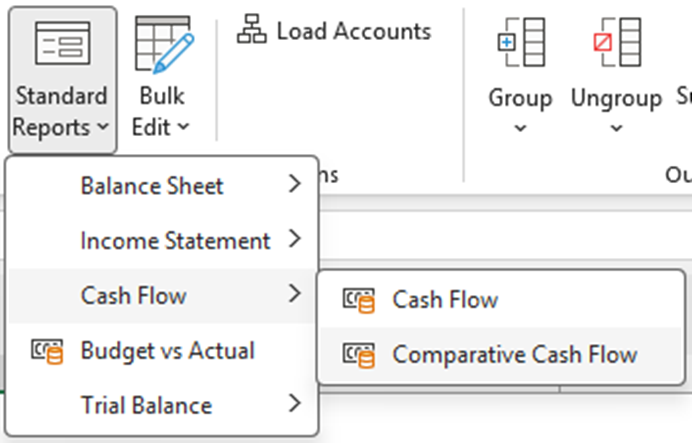
- Create Your NetSuite Financial Report with Finsyte
Use Finsyte’s Excel add-in to pull your Income Statement, Balance Sheet, Cash Flow, or Trial Balance directly from NetSuite into Excel. The data remains connected, refreshable, and structured for analysis.
- Select the Range You Want to Analyze
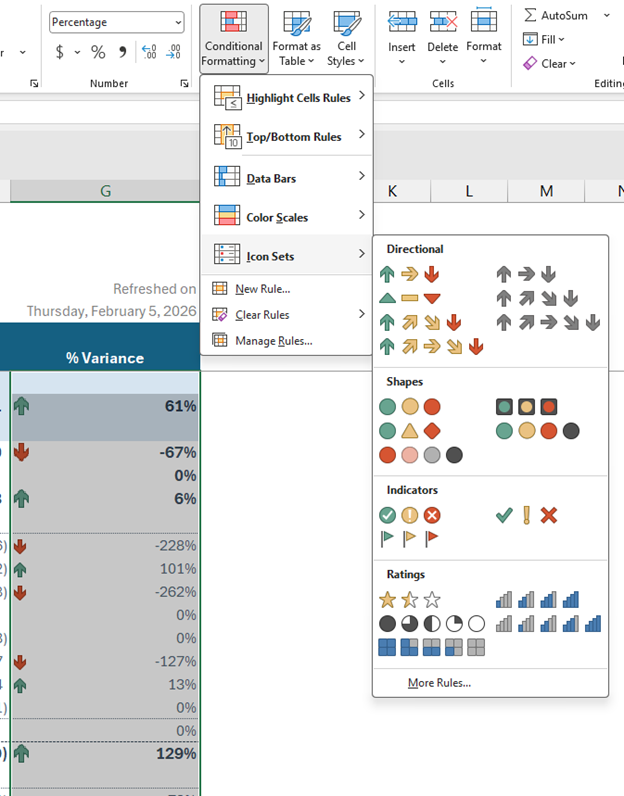
Highlight the Actuals, Budget, or Variance columns, then open Home → Conditional Formatting in Excel.
- Define Rules That Match Your Financial Objectives
Common examples include:
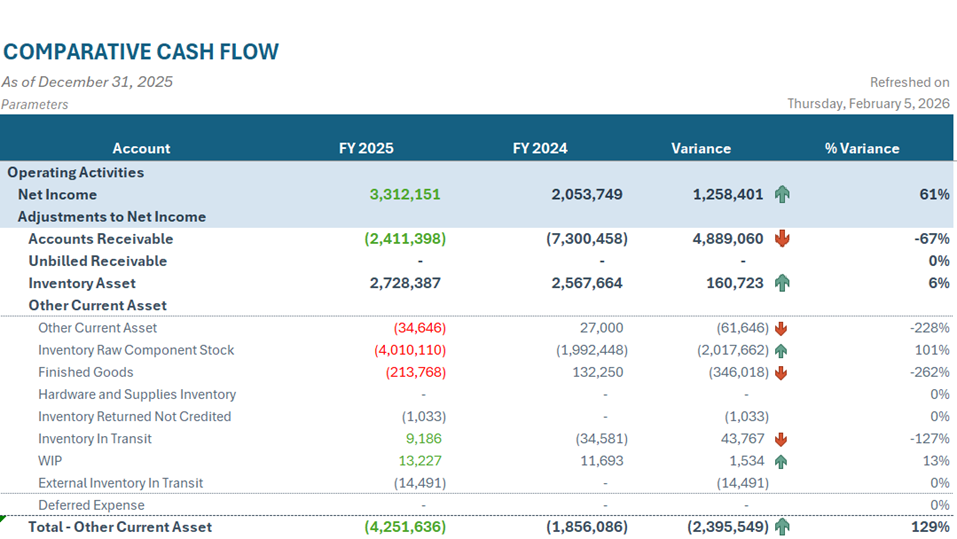
- Red fill for negative balances
- Green fill for favorable variances
- Icon sets for over or under thresholds
- Color scales to show relative magnitude across periods
These rules turn dense NetSuite Financials into visuals that stakeholders can read quickly and with less explanation.
Finding Duplicate Values in NetSuite Financials Using Excel Conditional Formatting
One often overlooked use of conditional formatting is identifying duplicates. This is especially helpful when reviewing account lists, mappings, or exported GL detail tied to NetSuite Financials.
In Excel, you can highlight duplicates by:
- Selecting the column you want to validate, such as Account Number, Account Name, or Department
- Navigating to Conditional Formatting → Highlight Cells Rules → Duplicate Values
- Choosing a visual style to flag duplicates automatically
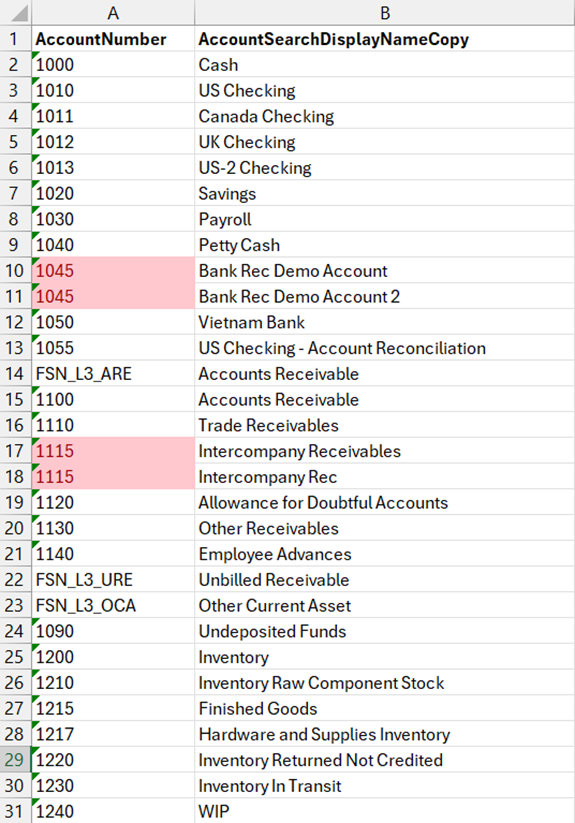
This approach is useful when:
- Validating account mappings
- Checking for duplicate accounts or segment combinations
- Auditing financial models that rely on consistent account keys
Instead of manually scanning rows, Excel surfaces potential issues immediately, which reduces review time and lowers risk.
Built-In Conditional Formatting in Finsyte’s GL List
Excel provides full control over formatting, but Finsyte adds another layer by applying conditional formatting automatically to the generated lists. This formatting makes it easy to understand hierarchies that exist. The General Ledger (GL) List in particular also focuses on structural issues that commonly lead to reporting and reconciliation problems.
Finsyte visually flags:
- Accounts that have child accounts (HasChildren = True)
- Where IsSummary ≠ True
Why this matters:
In NetSuite Financials, summary (non-posting) accounts typically exist to roll up child accounts. When an account both has children and allows postings, it can:
- Create misleading balances
- Cause rollup inconsistencies
- Complicate financial statements
- Introduce audit and reconciliation risk
By highlighting these accounts directly in the GL List, Finsyte helps teams identify structural problems early, before they affect downstream reporting. No manual Excel rules are required.
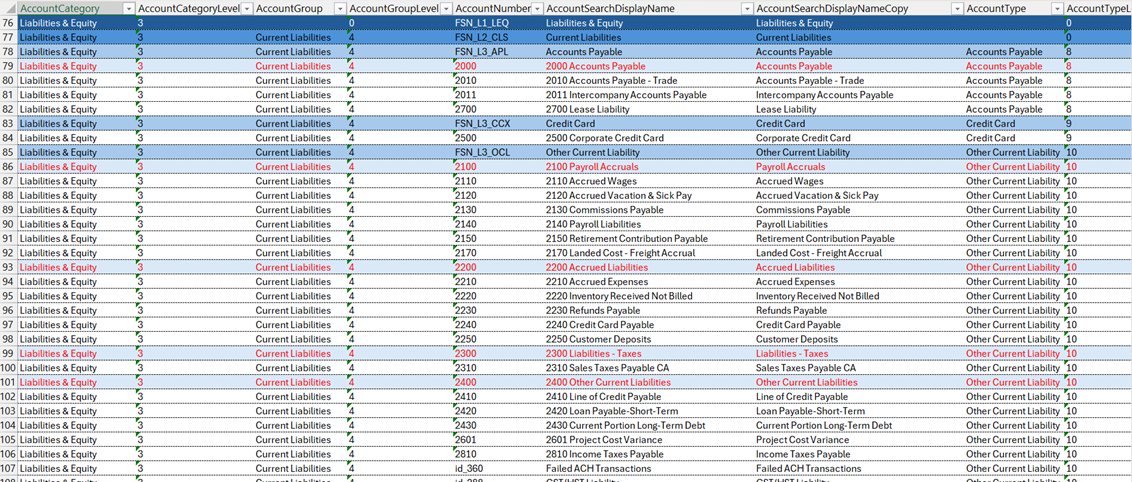
Review our full List Formatting documentation for additional insight.
Keeping Conditional Formatting Dynamic with Live NetSuite Data
A common concern is whether formatting survives data refreshes. With Finsyte:
- Formatting persists through refreshes
- Rules can be applied at the column and can apply to new columns if copied
- New periods and accounts inherit existing logic automatically
Best practices:
- Apply rules to full columns rather than fixed ranges
- Validate formatting behavior after refresh
Advanced Conditional Formatting for Financial Analysis
Once the basics are in place, conditional formatting can support deeper analysis:
- Highlight entire rows when key financial thresholds are crossed
- Use formulas in rules to compare Actual versus Budget
- Combine formatting with charts for executive summaries
Conclusion
Conditional formatting coupled with Finsyte’s Excel Add-In turns NetSuite Financials in Excel from static numbers into clear, actionable information. Excel provides flexibility for tasks like duplicate detection and variance analysis. Finsyte builds on this with automatic, purpose-built formatting that surfaces real financial and structural issues directly in the GL.
Together, they help finance teams move faster, catch problems earlier, and maintain confidence in their reporting.